It is possible to disable the XP splash screen, which will slightly speed up the overall boot process. Be aware that removing the splash screen will also cause you not to see any boot-up messages that might come up (chkdsk, convert … ), but if your system runs without any problems then it should not matter.
1)Edit boot.ini.
2)Add ” /noguiboot” right after “/fastdetect”.
3)Upon restarting, the splash screen will be gone. It can be re-enabled by removing the new switch.
Showing posts with label COMPUTERS. Show all posts
Showing posts with label COMPUTERS. Show all posts
March 28, 2009


January 02, 2009
Tired of PC Errors? Here's What You Can Do
Computer errors are not only time consuming and frustrating for computer users, but at times they may cost you a large amount of money for maintenance and repair. So, if you are tired of PC errors and are looking for a solution, you may consider following some simple steps:
1. Check your system configuration.
Quite often, errors occur due to incorrect system configuration and are resolved when you resolve the issue. For instance, Windows Messenger may generate error code 0x81000370 when you try to sign in to it, if the system clock of your system is not set correctly. This issue can be resolved by resetting your clock to the correct configuration.
2. Keep your Operating System and Applications Updated
When you purchase a computer, your computer performs efficiently as all the applications, operating system and device drivers are the latest versions and are updated. However, if these are not updated on a regular basis, they not only slow down your computer, but also cause a lot of critical errors. Therefore, it is recommended that you update your Windows OS as well as other applications installed on your computer. New updates make your operating system and software equipped with the latest service packs and plugs any loopholes thereby, minimizing the chances of an update error.
Note: In order to ensure that your Windows OS is up-to-date please select the Automatic Updates option in your Control Panel. While some of the software manufacturers provide free updates of their products, others are available only on a subscription basis.
3. Keep your Hard Disk uncluttered and defragmented
Another simple way of ensuring that your system remains free of errors is to take care of your computer’s hard disk. This involves using two important system tools that come with your Windows Operating System. These are:
1. Disk Cleanup: This tool helps you get rid of the clutter on your hard disk by deleting any redundant, outdated and unnecessary files that may have accumulated over a period of time.
2. Disk Defragmenter: The purpose of this tool is to make more space available by consolidating the files present on the hard drive and by making clusters of files contiguous.
4. Keep your Windows Registry Clean
The Windows Registry is a very busy component of your operating system. Each time a software or hardware device is installed, relevant entries are made in the registry. These entries are deleted whenever this software or hardware is uninstalled from your computer. However, many times this does not happen as planned and many unnecessary files are left over even after the related software or hardware is removed. This leads to a corrupt and bloated Windows registry, which causes many errors and interferes with the smooth functioning of your system. A reliable registry scanner tool will not only eliminate such useless entries and make it error-free, but will also make a complete backup of registry entries that is useful in case you have a system crash.
5. Use three important protection tools
The three tools that your system should have are:
1. Anti-virus: A reliable anti-virus which is always ON and updated with the latest definitions offers a great protection from virus threats. You must also run a thorough scan at regular intervals for best results.
2. Anti-spyware: A good anti-spyware will protect vital information from malicious software manufacturers who create spyware, adware and other illegal software.
3. Firewall: A firewall is a must for computers connected to the internet and other external networks. It acts as security personnel that shields your system against hackers trying to gain unauthorized access to your computer.
1. Check your system configuration.
Quite often, errors occur due to incorrect system configuration and are resolved when you resolve the issue. For instance, Windows Messenger may generate error code 0x81000370 when you try to sign in to it, if the system clock of your system is not set correctly. This issue can be resolved by resetting your clock to the correct configuration.
2. Keep your Operating System and Applications Updated
When you purchase a computer, your computer performs efficiently as all the applications, operating system and device drivers are the latest versions and are updated. However, if these are not updated on a regular basis, they not only slow down your computer, but also cause a lot of critical errors. Therefore, it is recommended that you update your Windows OS as well as other applications installed on your computer. New updates make your operating system and software equipped with the latest service packs and plugs any loopholes thereby, minimizing the chances of an update error.
Note: In order to ensure that your Windows OS is up-to-date please select the Automatic Updates option in your Control Panel. While some of the software manufacturers provide free updates of their products, others are available only on a subscription basis.
3. Keep your Hard Disk uncluttered and defragmented
Another simple way of ensuring that your system remains free of errors is to take care of your computer’s hard disk. This involves using two important system tools that come with your Windows Operating System. These are:
1. Disk Cleanup: This tool helps you get rid of the clutter on your hard disk by deleting any redundant, outdated and unnecessary files that may have accumulated over a period of time.
2. Disk Defragmenter: The purpose of this tool is to make more space available by consolidating the files present on the hard drive and by making clusters of files contiguous.
4. Keep your Windows Registry Clean
The Windows Registry is a very busy component of your operating system. Each time a software or hardware device is installed, relevant entries are made in the registry. These entries are deleted whenever this software or hardware is uninstalled from your computer. However, many times this does not happen as planned and many unnecessary files are left over even after the related software or hardware is removed. This leads to a corrupt and bloated Windows registry, which causes many errors and interferes with the smooth functioning of your system. A reliable registry scanner tool will not only eliminate such useless entries and make it error-free, but will also make a complete backup of registry entries that is useful in case you have a system crash.
5. Use three important protection tools
The three tools that your system should have are:
1. Anti-virus: A reliable anti-virus which is always ON and updated with the latest definitions offers a great protection from virus threats. You must also run a thorough scan at regular intervals for best results.
2. Anti-spyware: A good anti-spyware will protect vital information from malicious software manufacturers who create spyware, adware and other illegal software.
3. Firewall: A firewall is a must for computers connected to the internet and other external networks. It acts as security personnel that shields your system against hackers trying to gain unauthorized access to your computer.
GOOGLEBOT ND PAGERANK FORMULA
Googlebot/2.1 IP Addresses
64.68.80.#
64.68.81.#
64.68.82.#
64.68.84.#
64.68.88.#
216.239.46.#
216.239.38.#
216.239.36.#
Google PageRank Formula
PR(U) = (1-d) + d *
sumV(PR(V)/N(V))
Sites with PageRank 10
Adobe.com
Apple.com
Blogger.com
Energy.gov
FirstGov.gov
Google.com
Macromedia.com
NASA.gov
NSF.gov
NYTimes.com
Real.com
StatCounter.com
W3.org
WebStandards.org
Whitehouse.gov
64.68.80.#
64.68.81.#
64.68.82.#
64.68.84.#
64.68.88.#
216.239.46.#
216.239.38.#
216.239.36.#
Google PageRank Formula
PR(U) = (1-d) + d *
sumV(PR(V)/N(V))
Sites with PageRank 10
Adobe.com
Apple.com
Blogger.com
Energy.gov
FirstGov.gov
Google.com
Macromedia.com
NASA.gov
NSF.gov
NYTimes.com
Real.com
StatCounter.com
W3.org
WebStandards.org
Whitehouse.gov
December 22, 2008
Windows vista speed tweaks
1)Increase external USB hard drive performance.
By default, USB storage devices have write caching totally disabled primarily so you can unplug them without bothering with the Safety Remove Software icon in the Tray. Although this is handy for flash drives, it significantly slows down external USB hard drives. First, plug in your external USB drive, right-click Computer in the Start menu, and choose Properties. Then, click the Device Manager link, expand the Disk Drives entry by clicking the plus (+) sign, and double-click your external USB hard drive. Click the Policies tab and then click Optimize for Performance. This makes two more options appear: Enable Write Caching on the Disk and Enabled Advance Performance. Enable both options and click OK. Rebooting enables the change.
2)Increase SATA drive performance.
Vista's write caching is fairly conservative by default in order to prevent data loss in the event of a power failure. It your desktop PC is connected to a UPS (uninterruptable power supply), or if you're using a notebook computer with a reliable battery, you can set the write caching to be more aggressive. Right-click Computer in the Start menu, choose Properties, and then click the Device Manager link. Expand the Disk Drives entry by clicking on the plus (+) symbol and then double-click your SATA hard drive. Click the Policies tab, check Enable Advanced Performance, and click OK. Rebooting Vista will enable this change.
3)Disable Network Printer Search.
Vista normally searches for new network printers when you browse your LAN. But if you aren't regularly adding printers to your network, this searching slows things down. To disable this feature, click Network from the Start menu, which opens the Network window. Press ALT to make the Menu Bar visible if it isn't already and then choose Polder Options from the Tools menu. Finally, click the View tab. uncheck Automatically Search for Network Printers, and then click OK.
4)Turn unneeded Vista features off.
Windows Vista adds hundreds of features when it is installed. Not all of them arc enabled by default, but you probably don't need many that arc, anyway. Disabling those you don't need saves resources and speeds your system up. To find these and disable them, open the Windows Control Panel and switch to Classic View. Next, double click the Programs and Features icon and then click the Turn Windows Features on or off link on the left side or the window. After a moment, a large list appears with checkboxes. Those that are checked are enabled and those that aren't arc disabled. Different versions of Vista have different features enabled, so expand any collapsible entries by clicking the plus (+) sign to see what's turned on and disable what you don't need. For example, if you don't have a Tablet PC, you can safely disable Tablet PC Options Components. Click OK when you're done, and your computer will restart if necessary.
By default, USB storage devices have write caching totally disabled primarily so you can unplug them without bothering with the Safety Remove Software icon in the Tray. Although this is handy for flash drives, it significantly slows down external USB hard drives. First, plug in your external USB drive, right-click Computer in the Start menu, and choose Properties. Then, click the Device Manager link, expand the Disk Drives entry by clicking the plus (+) sign, and double-click your external USB hard drive. Click the Policies tab and then click Optimize for Performance. This makes two more options appear: Enable Write Caching on the Disk and Enabled Advance Performance. Enable both options and click OK. Rebooting enables the change.
2)Increase SATA drive performance.
Vista's write caching is fairly conservative by default in order to prevent data loss in the event of a power failure. It your desktop PC is connected to a UPS (uninterruptable power supply), or if you're using a notebook computer with a reliable battery, you can set the write caching to be more aggressive. Right-click Computer in the Start menu, choose Properties, and then click the Device Manager link. Expand the Disk Drives entry by clicking on the plus (+) symbol and then double-click your SATA hard drive. Click the Policies tab, check Enable Advanced Performance, and click OK. Rebooting Vista will enable this change.
3)Disable Network Printer Search.
Vista normally searches for new network printers when you browse your LAN. But if you aren't regularly adding printers to your network, this searching slows things down. To disable this feature, click Network from the Start menu, which opens the Network window. Press ALT to make the Menu Bar visible if it isn't already and then choose Polder Options from the Tools menu. Finally, click the View tab. uncheck Automatically Search for Network Printers, and then click OK.
4)Turn unneeded Vista features off.
Windows Vista adds hundreds of features when it is installed. Not all of them arc enabled by default, but you probably don't need many that arc, anyway. Disabling those you don't need saves resources and speeds your system up. To find these and disable them, open the Windows Control Panel and switch to Classic View. Next, double click the Programs and Features icon and then click the Turn Windows Features on or off link on the left side or the window. After a moment, a large list appears with checkboxes. Those that are checked are enabled and those that aren't arc disabled. Different versions of Vista have different features enabled, so expand any collapsible entries by clicking the plus (+) sign to see what's turned on and disable what you don't need. For example, if you don't have a Tablet PC, you can safely disable Tablet PC Options Components. Click OK when you're done, and your computer will restart if necessary.
December 21, 2008
Disable Microsoft Error Reporting
Disable Error Reporting for Windows Vista
1)Open Control Panel
2)Open the Problem Reports & Solutions applet Under advanced options, disable error reporting
Disable Error Reporting for Windows XP
1)Right click on My Computer and select Properties
2)Click the advanced tab
3)Click the error reporting button down the bottom
4)Select Disable error reporting
1)Open Control Panel
2)Open the Problem Reports & Solutions applet Under advanced options, disable error reporting
Disable Error Reporting for Windows XP
1)Right click on My Computer and select Properties
2)Click the advanced tab
3)Click the error reporting button down the bottom
4)Select Disable error reporting
How to auto restart Windows Xp and Vista in case of System Failure
Windows Blue Screen of Death in both of Xp and Vista are the most terrible thing which happens when there is a system failure and machine comes to an halt. The next you do is power down the machine and start it manually. However you can change this to make it restart automatically after the dump is created instead of waiting.
* Right click on My Computer and Click Properties
* Click on settings of System and Recovery.
* Remember this place is you can configure what the system will do when it gets into system failure.
* Just check the check box which says Automatically restart
Now the next time your computer goes for a system failure it will auto restart. But You will have to wait for the dumb to get created. Moreover you can also check for Overwriting the old dump file in case you want to save some space.
* Right click on My Computer and Click Properties
* Click on settings of System and Recovery.
* Remember this place is you can configure what the system will do when it gets into system failure.
* Just check the check box which says Automatically restart
Now the next time your computer goes for a system failure it will auto restart. But You will have to wait for the dumb to get created. Moreover you can also check for Overwriting the old dump file in case you want to save some space.
December 20, 2008
Computer Reboot automatically and gives Stop Error 0x0000007E, BSOD error
Stop Error 0x0000007E After SP3 is installed , Gives BSOD Stop Error for a second and reboot again.Problem after installation of Windows XP Service Pack 3. Computer Restarts after start up, it prompts for a reboot. This process will continue unless the computer is started in Safe Mode. In Safe mode the computer boots correctly and everything seems fine.
This problem only appears on some systems after upgrading to SP3. This particular problem on systems that have been prepared with SysPrep. The sysprep image was created on an Intel based computer, and then the sysprep image is deployed on a Non-Intel system such as an AMD processor. In these cases, the registry entry for Intelppm is incorrectly set and causes the computer to go into a continuous reboot after the service pack has installed.
How Can I Solve This Problem?
Follow these steps to resolve this issue with the computer not booting correctly after SP3 is installed.
1) Start your computer in Safe Mode.
2) Click on Start, Run, and type REGEDIT and press Enter. This will open the Registry Editor.
3) Click the pluses(+) next to the following registry keys to navigate to the correct spot. HKEY_LOCAL_MACHINESYSTEMCurrentControlSetServicesIntelppm4) In the right hand column find the entry titled START and double-click on it
5) Change the number to 4 and click Ok
6) Close the Registry Editor
7) Shut down your computer and restart
This time the computer should restart normally and finish the installation of SP3.
This problem only appears on some systems after upgrading to SP3. This particular problem on systems that have been prepared with SysPrep. The sysprep image was created on an Intel based computer, and then the sysprep image is deployed on a Non-Intel system such as an AMD processor. In these cases, the registry entry for Intelppm is incorrectly set and causes the computer to go into a continuous reboot after the service pack has installed.
How Can I Solve This Problem?
Follow these steps to resolve this issue with the computer not booting correctly after SP3 is installed.
1) Start your computer in Safe Mode.
2) Click on Start, Run, and type REGEDIT and press Enter. This will open the Registry Editor.
3) Click the pluses(+) next to the following registry keys to navigate to the correct spot. HKEY_LOCAL_MACHINESYSTEMCurrentControlSetServicesIntelppm4) In the right hand column find the entry titled START and double-click on it
5) Change the number to 4 and click Ok
6) Close the Registry Editor
7) Shut down your computer and restart
This time the computer should restart normally and finish the installation of SP3.
Remove Background Process GoogleUpdate.exe From The System
GoogleUpdate.exe is installed with several google applications. It runs in the background and checks for updates to google’s programs. Many people do not like extra, unnecessary processes running. Here are the directions for removing this pesky, reoccurring application. If you are a Google applications user, don’t forget GoogleUpdate.exe will also be installed while you install Goolge applications such as Google Chrome, Google Lively, Google Earth, etc.
The GoogleUpdate is a silent background process which tries to access the internet without requesting permission from users and it doesn’t provide an automatic option for users to disable it. If you are thinking to remove or disable the GoogleUpdate.exe, you can probably try the following methods for Vista/XP.
1. The easiest way, of course, is you can try to use any permission-based firewall to block GoogleUpdate before considering to remove it completely.
2. Alternately, you can consider removing it permanently. However, bear in mind, by removing GoogleUpdate, it will prevent you from downloading the updates for the parent applications.
3. To remove GoogleUpdate, firstly go to Control Panel and then go to Scheduled Tasks. Remove Google Update (Task Scheduler Object) by selecting GoogleUpdateTaskUser icon and clicking on the delete link.

After removing Google Update Task Scheduler Object, the next thing to do is to delete GoogleUpdate.exe. Right click on the taskbar or press “Alt+Ctrl+Del” to run your Task Manager.
5. In the Task Manager, just select GoogleUpdate.exe and click the End Process button. After doing this, it should be possible to delete GoogleUpdate.exe. In other cases, GoogleUpdate may be installed as a service, in which case you will need to first stop the service before attempting to delete the file.

Next, open the Registry Editor (Click Start/Run and type Regedit) and browse to the following subkey: HKEY_CURRENT_USER\Software\Microsoft\Windows\Curre ntVersion\Run\
7. In the right pane, locate the value named “Google Update”, right-click the name and select Delete. Click Yes to confirm the deletion. When finished, close the Registry Editor.
8. Last, reboot your system.
The GoogleUpdate is a silent background process which tries to access the internet without requesting permission from users and it doesn’t provide an automatic option for users to disable it. If you are thinking to remove or disable the GoogleUpdate.exe, you can probably try the following methods for Vista/XP.
1. The easiest way, of course, is you can try to use any permission-based firewall to block GoogleUpdate before considering to remove it completely.
2. Alternately, you can consider removing it permanently. However, bear in mind, by removing GoogleUpdate, it will prevent you from downloading the updates for the parent applications.
3. To remove GoogleUpdate, firstly go to Control Panel and then go to Scheduled Tasks. Remove Google Update (Task Scheduler Object) by selecting GoogleUpdateTaskUser icon and clicking on the delete link.

After removing Google Update Task Scheduler Object, the next thing to do is to delete GoogleUpdate.exe. Right click on the taskbar or press “Alt+Ctrl+Del” to run your Task Manager.
5. In the Task Manager, just select GoogleUpdate.exe and click the End Process button. After doing this, it should be possible to delete GoogleUpdate.exe. In other cases, GoogleUpdate may be installed as a service, in which case you will need to first stop the service before attempting to delete the file.

Next, open the Registry Editor (Click Start/Run and type Regedit) and browse to the following subkey: HKEY_CURRENT_USER\Software\Microsoft\Windows\Curre ntVersion\Run\
7. In the right pane, locate the value named “Google Update”, right-click the name and select Delete. Click Yes to confirm the deletion. When finished, close the Registry Editor.
8. Last, reboot your system.
10 Tips For Google Image Search
Google Image Search could be used in many ways.
1. If you want to know if a person is a man or a woman and the name doesn't help, do a search for the name.
2. If you don't know the meaning of a word, the pictures may help you.
3. A better search for Flickr. Google uses information from other sites that link to Flickr photos, so you may find Google search better.
4. Find what's interesting about a site, by looking at the pictures included. For example: wired.com.
5. Find a new wallpaper for your desktop by restricting your search to large images. You can automate this using an application.
6. Find random personal pictures, using standard file names from digital cameras.
7. Type the name of a painter and you can take an art class.
8. Install a Greasemonkey script so you can view the original version of the image directly by clicking on the thumbnail.
9. Find the color of a word. "Word Color is a windows program that uses Google Image Search to determine the color of a word or string of words. It goes out there, retrieves the top 9 images and loops through all pixels, calculating the average hue, which is later converted to a color."
10. If you want to grab search results, GoogleGrab is a tool that downloads images from Google Image Search. It even supports batch search.
1. If you want to know if a person is a man or a woman and the name doesn't help, do a search for the name.
2. If you don't know the meaning of a word, the pictures may help you.
3. A better search for Flickr. Google uses information from other sites that link to Flickr photos, so you may find Google search better.
4. Find what's interesting about a site, by looking at the pictures included. For example: wired.com.
5. Find a new wallpaper for your desktop by restricting your search to large images. You can automate this using an application.
6. Find random personal pictures, using standard file names from digital cameras.
7. Type the name of a painter and you can take an art class.
8. Install a Greasemonkey script so you can view the original version of the image directly by clicking on the thumbnail.
9. Find the color of a word. "Word Color is a windows program that uses Google Image Search to determine the color of a word or string of words. It goes out there, retrieves the top 9 images and loops through all pixels, calculating the average hue, which is later converted to a color."
10. If you want to grab search results, GoogleGrab is a tool that downloads images from Google Image Search. It even supports batch search.
How To Uninstall GrooveMonitor.exe
GrooveMonitor is a service utility that tracks groove behavour and creates reports for error reporting to MS (what else does it report?). It loads on startup. It gets installed when you install Office 2007. However it doesn't get uninstalled when you uninstall Office 2007. GrooveMonitor starts upon Windows startup (via registry key: HKEY_LOCAL_MACHINE\SOFTWARE\Microsoft\Windows\CurrentVersion\Run).
To remove GrooveMonitor from your machine you have to go to Control Panel and then select Add/Remove programs. GrooveMonitor is one of the displayed applications. Uninstall it from there. That should do it for any normal windows program. Not surprisingly Microsoft himself often violates this basic principle (which surprisingly would give you more control over their crappy [pardon my French] software), and GrooveMonitor will still load on startup.
You can however use msconfig to prevent it from coming up on Windows startup.
1. Go to Start menu and click Run
2. Type msconfig and press Enter.
3. Go to Startup tab and then uncheck any reference to "groovemonitor"
4. Reboot
Note: Some malware may also camouflage themselves as GrooveMonitor.exe, particularly if they are located in c:\windows or c:\windows\system32 folder.
GrooveMonitor is currently owned by Microsoft Corporation.
To remove GrooveMonitor from your machine you have to go to Control Panel and then select Add/Remove programs. GrooveMonitor is one of the displayed applications. Uninstall it from there. That should do it for any normal windows program. Not surprisingly Microsoft himself often violates this basic principle (which surprisingly would give you more control over their crappy [pardon my French] software), and GrooveMonitor will still load on startup.
You can however use msconfig to prevent it from coming up on Windows startup.
1. Go to Start menu and click Run
2. Type msconfig and press Enter.
3. Go to Startup tab and then uncheck any reference to "groovemonitor"
4. Reboot
Note: Some malware may also camouflage themselves as GrooveMonitor.exe, particularly if they are located in c:\windows or c:\windows\system32 folder.
GrooveMonitor is currently owned by Microsoft Corporation.
December 16, 2008
How to Repair Rundll32 Error Messages on Start-up - The Easy Way
What is a Rundll32 Error?
Rundll32 refers to errors in the Microsoft Vista or XP windows registry. Prior to the Vista and XP versions - Windows 95, 98 - this was called Rundll error.
The difference is simply the result of 16-bit and 32-bit technology used in the operating system software. Both unfortunately spurt out these error messages either at startup or Windows shutdown.
The Rundll32 File
The Rundll32 file is basically your data manager between your dynamic link library ( .dll ) and many of the peripherals, programs and devices attached to your computer. The Dynamic Link Library is the portion of your OS where all the files that allow multiple programs to run at once on your Windows computer or stored.
The Rundll32 error can be caused by a variety of different problems ranging from malfunctioning hardware to conflicts between programs, and can also be a symptom of a virus, spyware or Trojan being presenton your computer.
The error messages can come at any given time typically triggered by an application attempting to access the .dll library. The most common error message reads something like this…
Typical Rundll32 Error Message
RUNDLL: Error loading C:\windows\system 32\XXXXX.dll. The specified module could not be found.
Basically what this message means is this:
It is telling you in which exact part of the .dll library the error is occurring in & the file that is corrupt. (this is the xxxxx.dll bit. The “C:\windows\system32\” is just telling you that it is part of the 32-bit operating system.
In the majority of cases, these error messages are the result of a corrupt, damaged or deleted file, and in this case, most likely a driver, somewhere on your computer that is causing another program not to run properly.
Fix RUNDLL32 Errors for Good
There is an easy solution to fix nearly all RUNDLL and RUNDLL32 errors. Registry cleaners can do this for you. They scan your registry looking for missing, corrupt or damaged DLL files and repair them. Ultimately, this results in your PC running faster and at optimal performance.
Rundll32 refers to errors in the Microsoft Vista or XP windows registry. Prior to the Vista and XP versions - Windows 95, 98 - this was called Rundll error.
The difference is simply the result of 16-bit and 32-bit technology used in the operating system software. Both unfortunately spurt out these error messages either at startup or Windows shutdown.
The Rundll32 File
The Rundll32 file is basically your data manager between your dynamic link library ( .dll ) and many of the peripherals, programs and devices attached to your computer. The Dynamic Link Library is the portion of your OS where all the files that allow multiple programs to run at once on your Windows computer or stored.
The Rundll32 error can be caused by a variety of different problems ranging from malfunctioning hardware to conflicts between programs, and can also be a symptom of a virus, spyware or Trojan being presenton your computer.
The error messages can come at any given time typically triggered by an application attempting to access the .dll library. The most common error message reads something like this…
Typical Rundll32 Error Message
RUNDLL: Error loading C:\windows\system 32\XXXXX.dll. The specified module could not be found.
Basically what this message means is this:
It is telling you in which exact part of the .dll library the error is occurring in & the file that is corrupt. (this is the xxxxx.dll bit. The “C:\windows\system32\” is just telling you that it is part of the 32-bit operating system.
In the majority of cases, these error messages are the result of a corrupt, damaged or deleted file, and in this case, most likely a driver, somewhere on your computer that is causing another program not to run properly.
Fix RUNDLL32 Errors for Good
There is an easy solution to fix nearly all RUNDLL and RUNDLL32 errors. Registry cleaners can do this for you. They scan your registry looking for missing, corrupt or damaged DLL files and repair them. Ultimately, this results in your PC running faster and at optimal performance.
Enable and Disable automatically running CD-ROM
When you insert a CD-ROM disk, your CD-ROM drive always runs automatically for the default setting (autorun CD-ROM). We have a tip to disable running your CD-ROM drive whereas you can enable it running again as you want. This tutorial will teach you to enable or disable running CD-ROM drive by editing a registry. Follow these steps.
1)Click Start > Run .
2)In the Run dialog, type regedit and press Enter.
3)In the Registry Editor window, Go to the path like below,
HKEY_LOCAL_MACHINE\SYSTEM\CurrentControlSet\Services\Cdrom
4)Now you can see the AutoRun DWORD in the right panel, double click on it.
5)Change the Value data to 0 for disabling automatically running CD-ROM, then click OK. If you want it to automatically run again, you must fill 1 value in the Value data.
6)Close Registry Editor window and reboot your computer.
7)Test it by inserting your CD-ROM disk. Now your computer does not automatically runs your disk.
1)Click Start > Run .
2)In the Run dialog, type regedit and press Enter.
3)In the Registry Editor window, Go to the path like below,
HKEY_LOCAL_MACHINE\SYSTEM\CurrentControlSet\Services\Cdrom
4)Now you can see the AutoRun DWORD in the right panel, double click on it.
5)Change the Value data to 0 for disabling automatically running CD-ROM, then click OK. If you want it to automatically run again, you must fill 1 value in the Value data.
6)Close Registry Editor window and reboot your computer.
7)Test it by inserting your CD-ROM disk. Now your computer does not automatically runs your disk.
December 15, 2008
10 Basic Tips For the Internet Explorer (IE)
In order to use the Internet Explorer (IE) effectively, we have some basic tips for you to try… Ok let’s go now.
1. To extend the window area of the IE, you can make it easy by pressing the F11 key. Then you press it again in order to return the IE to the normal window.
2. Sometimes you want to search a keyword in a long web page that you are surfing. How do you do ?? Just press Ctrl+F and place the keyword you want.
3. Using Backspace key in your keyboard instead of clicking Back in the IE window.
4. You can close your IE window that you are surfing by Ctrl+W.
5. To see the surfing websites history, Press F4 key to see the URL which you have typed.
6. Press Ctrl+D in order to save the url which you are surfing. And the url will be in the Favorites.
7. To send a web page to your friend. Do you know we can send it by email from the IE’s tools ? Let you try it, go to File > Send > Page by E-mail...
8. To slide the web page by using the keyboard, try it with the arrow keys. To slide it to the bottom and the top of the web page, try the End and Home key.
9. If you find a picture that you prefer it to be the desktop wallpaper, you can immediately set it, right click on the picture area and select the Set as wallpaper.
10. To slide the web page gradually, you may use the Page up, Page down and Spacebar keys. Try it !
1. To extend the window area of the IE, you can make it easy by pressing the F11 key. Then you press it again in order to return the IE to the normal window.
2. Sometimes you want to search a keyword in a long web page that you are surfing. How do you do ?? Just press Ctrl+F and place the keyword you want.
3. Using Backspace key in your keyboard instead of clicking Back in the IE window.
4. You can close your IE window that you are surfing by Ctrl+W.
5. To see the surfing websites history, Press F4 key to see the URL which you have typed.
6. Press Ctrl+D in order to save the url which you are surfing. And the url will be in the Favorites.
7. To send a web page to your friend. Do you know we can send it by email from the IE’s tools ? Let you try it, go to File > Send > Page by E-mail...
8. To slide the web page by using the keyboard, try it with the arrow keys. To slide it to the bottom and the top of the web page, try the End and Home key.
9. If you find a picture that you prefer it to be the desktop wallpaper, you can immediately set it, right click on the picture area and select the Set as wallpaper.
10. To slide the web page gradually, you may use the Page up, Page down and Spacebar keys. Try it !
Know some Computer Terms...
RTM
Short for release to manufacturing, the version of a software product that is given to manufacturers to bundle into future versions of their hardware products. RTM versions are typically released to manufacturers before they are released to the general public so that the manufacturers can work out any bugs the software may encounter with hardware devices. The release of an RTM version does not necessarily mean that the creators have worked out all the problems with the software; there still may be more versions of the product before it is released to the general public.
OEM
Short for original equipment manufacturer, which is a misleading term for a company that has a special relationship with computer producers. OEMs are manufacturers who resell another company's product under their own name and branding. While an OEM is similar to a VAR (value-added reseller), it refers specifically to the act of a company rebranding a product to its own name and offering its own warranty, support and licensing of the product. The term is really a misnomer because OEMs are not the original manufacturers; they are the customizers.
IHV
Short for Independent hardware vendor, a hardware-manufacturing company that specializes in a specific type of hardware device and not a complete computer system. The IHV typically also provides the software drivers for its hardware devices
Pulling wire
A phrase used to describe the act of running network cable from one location to another.
SURGINET
SURGINET is one of the most well-known e-mail mailing list for General Surgeons that serves as a forum for academic and clinical discussions and knowledge sharing specific to the specialty of General Surgery. While officially the list membership is restricted to Surgeons, members are also from many disciplines, such as nursing, med students, basic scientists, pharmacists, residents, even veterinarians. The SURGINET mailing list is run by list owner Tom Gilas.
BlackBerry
BlackBerry is a line of mobile e-mail devices and services from Research In Motion (RIM). BlackBerry is a complete package that includes airtime, software and choice of BlackBerry mobile device. BlackBerry is currently available in the United States, Canada and the United Kingdom.
In the United States and Canada, BlackBerry depends on either narrowband PCS 800 MHz DataTAC networks or narrowband PCS 900 MHz Mobitex networks. In the UK, BlackBerry works over GPRS networks.
BlackBerry's popularity may be attributed to its easy-to-use interface and keyboard.
Bluejacking
Bluejacking allows phone users to send business cards anonymously using Bluetooth wireless technology. Bluejacking does not involve the removal or alteration of any data from the device. These business cards often have a clever or flirtatious message rather than the typical name and phone number. Bluejackers often look for the receiving phone to ping or the user to react. They then send another, more personal message to that device. Once again, in order to carry out a bluejacking, the sending and receiving devices must be within 10 meters of one another. Phone owners who receive bluejack messages should refuse to add the contacts to their address book. Devices that are set in non-discoverable mode are not susceptible to bluejacking
Bluebugging
Bluebugging allows skilled individuals to access the mobile phone commands using Bluetooth wireless technology without notifying or alerting the phone user. This vulnerability allows the hacker to initiate phone calls, send and read SMS, read and write phonebook contacts, eavesdrop on phone conversations, and connect to the Internet. As with all the attacks, the hacker must be within a 10 meter range of the phone. This is a separate vulnerability from bluesnarfing and does not affect all of the same phones as bluesnarfing
Bluesnarfing
Bluesnarfing allows hackers to gain access to data stored on a Bluetooth enabled phone using Bluetooth wireless technology without alerting the phone’s user of the connection made to the device. The information that can be accessed in this manner includes the phonebook and associated images, calendar, and IMEI (International Mobile Equipment Identity). By setting the device in non-discoverable, it becomes significantly more difficult to find and attack the device. Without specialized equipment the hacker must be within a 10 meter range of the device while running a device with specialized software. Only specific older Bluetooth enabled phones are susceptible to bluesnarfing
MIN
Short for Mobile Identification Number it is a unique 24-bit number assigned by the wireless service provider (carrier) to each mobile phone it sells or includes in service plans.
Wi-Fi
Short for wireless fidelity and is meant to be used generically when referring of any type of 802.11 network, whether 802.11b, 802.11a, dual-band, etc. The term is promulgated by the Wi-Fi Alliance.
Any products tested and approved as "Wi-Fi Certified" (a registered trademark) by the Wi-Fi Alliance are certified as interoperable with each other, even if they are from different manufacturers. A user with a "Wi-Fi Certified" product can use any brand of access point with any other brand of client hardware that also is certified. Typically, however, any Wi-Fi product using the same radio frequency (for example, 2.4GHz for 802.11b or 11g, 5GHz for 802.11a) will work with any other, even if not "Wi-Fi Certified."
Formerly, the term "Wi-Fi" was used only in place of the 2.4GHz 802.11b standard, in the same way that "Ethernet" is used in place of IEEE 802.3. The Alliance expanded the generic use of the term in an attempt to stop confusion about wireless LAN interoperability.
Moblog
Acronym used to combine the terms "mobile" and "Web log". Where a Web log (also called a blog) is a Web page that serves as a publicly accessible personal journal for an individual, a moblog is a blog which has been posted to the Internet from a mobile device such as a mobile phone or PDA.
3G
3G is an ITU(International Telecommunication Union) specification for the third generation (analog cellular was the first generation, digital PCS the second) of mobile communications technology. 3G promises increased bandwidth, up to 384 Kbps when a device is stationary or moving at pedestrian speed, 128 Kbps in a car, and 2 Mbps in fixed applications. 3G will work over wireless air interfaces such as GSM, TDMA, and CDMA. The new EDGE air interface has been developed specifically to meet the bandwidth needs of 3G.
E-nag
A slang term used to describe a person who nags (annoys or torments persistently) through electronic means such as e-mail, instant messaging, forums or online chat rooms. An e-nagger typically is a person who sends a successive stream of messages without allowing adequate time for a response from the recipient.
Spim
Also spelled as spIM, spam over instant messaging (IM). Spim is perpetuated by bots that harvest IM screen names off of the Internet and simulate a human user by sending spam to the screen names via an instant message. The spim typically contains a link to a Web site that the spimmer is trying to market.
Also referred to as instant spam or the less-intrusive sounding IM marketing.
(v.) To send someone spam through an instant messaging application.
A spimmer is the individual or organization responsible for sending the spim.
Bot
Short for robot, a computer program that runs automatically.
Hammering
The act of trying repeatedly to connect to an unavailable FTP server with little or no time between connection attempts. It can be compared to repeatedly hitting the "redial" button on a telephone when dialing a phone number that is busy until the other phone is no longer busy.
Trading servers have a limit on the number of active connections that may be present at one time. A server cannot process an unlimited number of requests, so when servers are occupied to full capacity they will deny further access until they have free space. Hammering consumes bandwidth, slowing down the server. In addition to already working at capacity, the server has to then send a busy response to the device that was unable to connect every time that device attempts a connection, which further depletes the server's resources and slows the system down in its connections with other devices.
Most FTP sites have policies against hammering and require FTP clients to set retry times at specific intervals, commonly at least 120 seconds between each attempt to connect. Most FTP sites can also monitor for devices that hammer, and once detected the server will ban access to the offending IP address either permanently or for a limited amount of time.
Cuckoo Egg
A Cuckoo Egg is an edited MP3 file that appears to be a copyright protected song being distributed via the Internet without the permission of the copyright owner. The initial portion of the song (first 30 seconds or so) will be of the real song. The remainder of the song however, has been overwritten by something other than the initial song; usually cuckoo clock sound effects or or a series of random sounds and noises which are free of any copyright ownerships. Cuckoo Eggs will have the correct file size and playing time as the original copyrighted MP3 file will have.
Hoax
In e-mail terminology a hoax is a message which is written to deliberately spread fear, uncertainty and doubt.
Cloaking
1) Also known as stealth, a technique used by some Web sites to deliver one page to a search engine for indexing while serving an entirely different page to everyone else. There are opposing views as to whether or not cloaking is ethical. Opponents see it as a bait-and-switch, where a Web server is scripted to look out for search engines that are spidering in order to create an index of search results. The search engine thinks it is selecting a prime match to its request based on the meta tags that the site administrator has input. However, the search result is misleading because the meta tags do not correspond to what actually exists on the page. Some search engines, such as Lycos, Hotbot and Excite, even ban cloaked Web sites. Proponents of cloaking assert that cloaking is necessary in order to protect the meta data, as only the spider is supplied with the meta tags.
(2) In e-mail distribution, cloaking is the act of masking the name and address of the sender so that the recipient does not know who sent the e-mail.
Leech
Slang term frequently used by those actively engaged P2P and unethical file sharing. A leech or leecher is considered to be a user who downloads files and provides few or no uploads in return. Crackers also uses this term to describe those who constantly request sources and information and offer nothing in return.
Flame
A searing e-mail or newsgroup message in which the writer attacks another participant in overly harsh, and often personal, terms. Flames are an unfortunate, but inevitable, element of unmoderated conferences.
Sporn
A slang term used to describe e-mail spam specifically of adult content or of a pornographic nature. Sporn tends to be more aggressively marketed and deceitfully packaged than other types of spam.
Snailmail
Normal postal mail, where an actual physical letter or package is delivered. The term didn't exist until electronic mail (e-mail) became so prevalent that there was a requirement to differentiate the two. Obviously, the term was invented by e-mail aficionados as a small barb directed at the relative slowness of physical ransportation.
Spamdress
Slang term for spam e-mail address, a person's secondary e-mail address, which is used for registering to receive newsletters, discussion forums and for other Web sites requiring sign-ups where you may receive frequent e-mails. The spamdress is used in place of a primary e-mail address to assist in keeping spam out of the primary account. Also called spamaddress.
IMAP
Short for Internet Message Access Protocol, a protocol for retrieving e-mail messages. The latest version, IMAP4, is similar to POP3 but supports some additional features. For example, with IMAP4, you can search through your e-mail messages for keywords while the messages are still on mail server. You can then choose which messages to download to your machine.
IMAP was developed at Stanford University in 1986.
Hard bounce
When e-mailing, hard bounce is used to describe an e-mail that has bounced back to the sender undelivered without having been accepted by the recipient's mail server.
Soft bounce
When e-mailing, soft bounce is used to describe an e-mail that has bounced back to the sender undelivered after it has already been accepted by the recipient's mail server
Short for release to manufacturing, the version of a software product that is given to manufacturers to bundle into future versions of their hardware products. RTM versions are typically released to manufacturers before they are released to the general public so that the manufacturers can work out any bugs the software may encounter with hardware devices. The release of an RTM version does not necessarily mean that the creators have worked out all the problems with the software; there still may be more versions of the product before it is released to the general public.
OEM
Short for original equipment manufacturer, which is a misleading term for a company that has a special relationship with computer producers. OEMs are manufacturers who resell another company's product under their own name and branding. While an OEM is similar to a VAR (value-added reseller), it refers specifically to the act of a company rebranding a product to its own name and offering its own warranty, support and licensing of the product. The term is really a misnomer because OEMs are not the original manufacturers; they are the customizers.
IHV
Short for Independent hardware vendor, a hardware-manufacturing company that specializes in a specific type of hardware device and not a complete computer system. The IHV typically also provides the software drivers for its hardware devices
Pulling wire
A phrase used to describe the act of running network cable from one location to another.
SURGINET
SURGINET is one of the most well-known e-mail mailing list for General Surgeons that serves as a forum for academic and clinical discussions and knowledge sharing specific to the specialty of General Surgery. While officially the list membership is restricted to Surgeons, members are also from many disciplines, such as nursing, med students, basic scientists, pharmacists, residents, even veterinarians. The SURGINET mailing list is run by list owner Tom Gilas.
BlackBerry
BlackBerry is a line of mobile e-mail devices and services from Research In Motion (RIM). BlackBerry is a complete package that includes airtime, software and choice of BlackBerry mobile device. BlackBerry is currently available in the United States, Canada and the United Kingdom.
In the United States and Canada, BlackBerry depends on either narrowband PCS 800 MHz DataTAC networks or narrowband PCS 900 MHz Mobitex networks. In the UK, BlackBerry works over GPRS networks.
BlackBerry's popularity may be attributed to its easy-to-use interface and keyboard.
Bluejacking
Bluejacking allows phone users to send business cards anonymously using Bluetooth wireless technology. Bluejacking does not involve the removal or alteration of any data from the device. These business cards often have a clever or flirtatious message rather than the typical name and phone number. Bluejackers often look for the receiving phone to ping or the user to react. They then send another, more personal message to that device. Once again, in order to carry out a bluejacking, the sending and receiving devices must be within 10 meters of one another. Phone owners who receive bluejack messages should refuse to add the contacts to their address book. Devices that are set in non-discoverable mode are not susceptible to bluejacking
Bluebugging
Bluebugging allows skilled individuals to access the mobile phone commands using Bluetooth wireless technology without notifying or alerting the phone user. This vulnerability allows the hacker to initiate phone calls, send and read SMS, read and write phonebook contacts, eavesdrop on phone conversations, and connect to the Internet. As with all the attacks, the hacker must be within a 10 meter range of the phone. This is a separate vulnerability from bluesnarfing and does not affect all of the same phones as bluesnarfing
Bluesnarfing
Bluesnarfing allows hackers to gain access to data stored on a Bluetooth enabled phone using Bluetooth wireless technology without alerting the phone’s user of the connection made to the device. The information that can be accessed in this manner includes the phonebook and associated images, calendar, and IMEI (International Mobile Equipment Identity). By setting the device in non-discoverable, it becomes significantly more difficult to find and attack the device. Without specialized equipment the hacker must be within a 10 meter range of the device while running a device with specialized software. Only specific older Bluetooth enabled phones are susceptible to bluesnarfing
MIN
Short for Mobile Identification Number it is a unique 24-bit number assigned by the wireless service provider (carrier) to each mobile phone it sells or includes in service plans.
Wi-Fi
Short for wireless fidelity and is meant to be used generically when referring of any type of 802.11 network, whether 802.11b, 802.11a, dual-band, etc. The term is promulgated by the Wi-Fi Alliance.
Any products tested and approved as "Wi-Fi Certified" (a registered trademark) by the Wi-Fi Alliance are certified as interoperable with each other, even if they are from different manufacturers. A user with a "Wi-Fi Certified" product can use any brand of access point with any other brand of client hardware that also is certified. Typically, however, any Wi-Fi product using the same radio frequency (for example, 2.4GHz for 802.11b or 11g, 5GHz for 802.11a) will work with any other, even if not "Wi-Fi Certified."
Formerly, the term "Wi-Fi" was used only in place of the 2.4GHz 802.11b standard, in the same way that "Ethernet" is used in place of IEEE 802.3. The Alliance expanded the generic use of the term in an attempt to stop confusion about wireless LAN interoperability.
Moblog
Acronym used to combine the terms "mobile" and "Web log". Where a Web log (also called a blog) is a Web page that serves as a publicly accessible personal journal for an individual, a moblog is a blog which has been posted to the Internet from a mobile device such as a mobile phone or PDA.
3G
3G is an ITU(International Telecommunication Union) specification for the third generation (analog cellular was the first generation, digital PCS the second) of mobile communications technology. 3G promises increased bandwidth, up to 384 Kbps when a device is stationary or moving at pedestrian speed, 128 Kbps in a car, and 2 Mbps in fixed applications. 3G will work over wireless air interfaces such as GSM, TDMA, and CDMA. The new EDGE air interface has been developed specifically to meet the bandwidth needs of 3G.
E-nag
A slang term used to describe a person who nags (annoys or torments persistently) through electronic means such as e-mail, instant messaging, forums or online chat rooms. An e-nagger typically is a person who sends a successive stream of messages without allowing adequate time for a response from the recipient.
Spim
Also spelled as spIM, spam over instant messaging (IM). Spim is perpetuated by bots that harvest IM screen names off of the Internet and simulate a human user by sending spam to the screen names via an instant message. The spim typically contains a link to a Web site that the spimmer is trying to market.
Also referred to as instant spam or the less-intrusive sounding IM marketing.
(v.) To send someone spam through an instant messaging application.
A spimmer is the individual or organization responsible for sending the spim.
Bot
Short for robot, a computer program that runs automatically.
Hammering
The act of trying repeatedly to connect to an unavailable FTP server with little or no time between connection attempts. It can be compared to repeatedly hitting the "redial" button on a telephone when dialing a phone number that is busy until the other phone is no longer busy.
Trading servers have a limit on the number of active connections that may be present at one time. A server cannot process an unlimited number of requests, so when servers are occupied to full capacity they will deny further access until they have free space. Hammering consumes bandwidth, slowing down the server. In addition to already working at capacity, the server has to then send a busy response to the device that was unable to connect every time that device attempts a connection, which further depletes the server's resources and slows the system down in its connections with other devices.
Most FTP sites have policies against hammering and require FTP clients to set retry times at specific intervals, commonly at least 120 seconds between each attempt to connect. Most FTP sites can also monitor for devices that hammer, and once detected the server will ban access to the offending IP address either permanently or for a limited amount of time.
Cuckoo Egg
A Cuckoo Egg is an edited MP3 file that appears to be a copyright protected song being distributed via the Internet without the permission of the copyright owner. The initial portion of the song (first 30 seconds or so) will be of the real song. The remainder of the song however, has been overwritten by something other than the initial song; usually cuckoo clock sound effects or or a series of random sounds and noises which are free of any copyright ownerships. Cuckoo Eggs will have the correct file size and playing time as the original copyrighted MP3 file will have.
Hoax
In e-mail terminology a hoax is a message which is written to deliberately spread fear, uncertainty and doubt.
Cloaking
1) Also known as stealth, a technique used by some Web sites to deliver one page to a search engine for indexing while serving an entirely different page to everyone else. There are opposing views as to whether or not cloaking is ethical. Opponents see it as a bait-and-switch, where a Web server is scripted to look out for search engines that are spidering in order to create an index of search results. The search engine thinks it is selecting a prime match to its request based on the meta tags that the site administrator has input. However, the search result is misleading because the meta tags do not correspond to what actually exists on the page. Some search engines, such as Lycos, Hotbot and Excite, even ban cloaked Web sites. Proponents of cloaking assert that cloaking is necessary in order to protect the meta data, as only the spider is supplied with the meta tags.
(2) In e-mail distribution, cloaking is the act of masking the name and address of the sender so that the recipient does not know who sent the e-mail.
Leech
Slang term frequently used by those actively engaged P2P and unethical file sharing. A leech or leecher is considered to be a user who downloads files and provides few or no uploads in return. Crackers also uses this term to describe those who constantly request sources and information and offer nothing in return.
Flame
A searing e-mail or newsgroup message in which the writer attacks another participant in overly harsh, and often personal, terms. Flames are an unfortunate, but inevitable, element of unmoderated conferences.
Sporn
A slang term used to describe e-mail spam specifically of adult content or of a pornographic nature. Sporn tends to be more aggressively marketed and deceitfully packaged than other types of spam.
Snailmail
Normal postal mail, where an actual physical letter or package is delivered. The term didn't exist until electronic mail (e-mail) became so prevalent that there was a requirement to differentiate the two. Obviously, the term was invented by e-mail aficionados as a small barb directed at the relative slowness of physical ransportation.
Spamdress
Slang term for spam e-mail address, a person's secondary e-mail address, which is used for registering to receive newsletters, discussion forums and for other Web sites requiring sign-ups where you may receive frequent e-mails. The spamdress is used in place of a primary e-mail address to assist in keeping spam out of the primary account. Also called spamaddress.
IMAP
Short for Internet Message Access Protocol, a protocol for retrieving e-mail messages. The latest version, IMAP4, is similar to POP3 but supports some additional features. For example, with IMAP4, you can search through your e-mail messages for keywords while the messages are still on mail server. You can then choose which messages to download to your machine.
IMAP was developed at Stanford University in 1986.
Hard bounce
When e-mailing, hard bounce is used to describe an e-mail that has bounced back to the sender undelivered without having been accepted by the recipient's mail server.
Soft bounce
When e-mailing, soft bounce is used to describe an e-mail that has bounced back to the sender undelivered after it has already been accepted by the recipient's mail server
Disable Indexing Service & Use a Better Substitute
In order to search through a hard drive faster, XP keeps a record of all files on the hard drive.
It sounds useful, but if you use Windows search tool infrequently, the indexing service just constantly runs in the background without being taken advantage of and used.
Indexing can slow down actions as simple as opening or closing files.
To disable this service:
1)go to Start > Run and type services.msc.
2)Double click Indexing Services and set the startup type to Disabled.
3)If you want to search, there is a freeware program called Locate that can index 400GB of data in under 2 minutes and can perform instant searches.
4)File > Update Databases re-indexes all your drives, in case you miss where the indexing option is located. You should only re-index before a search. This way, system resources are used only when you actually need to perform a search.
In addition, you can use Task Scheduler (a.k.a. Scheduled Tasks) to run the shortcut named Updtdb32″ in place of using the Update Database option manually within the program. For example, have the task run daily at a time you are not usually at your computer, such as early in the morning. So, all the files that had been added, moved and changed from the previous day can be indexed. If you have this re-indexing task done daily, it only takes a few seconds each time it is done. You can get to the task scheduler by
going to Start > Run.
Type %systemroot%\Tasks, and hit enter.
Double click on Add Scheduled Task and the wizard will help take you through the process of setting up a scheduled task.
Make sure you hit Browse when asked for what application you want to be run. Navigate to the folder where you have the Updtdb32″ shortcut.
Other than that, creating the scheduled task should be fairly self-explanatory, thanks to the wizard.
_________________
It sounds useful, but if you use Windows search tool infrequently, the indexing service just constantly runs in the background without being taken advantage of and used.
Indexing can slow down actions as simple as opening or closing files.
To disable this service:
1)go to Start > Run and type services.msc.
2)Double click Indexing Services and set the startup type to Disabled.
3)If you want to search, there is a freeware program called Locate that can index 400GB of data in under 2 minutes and can perform instant searches.
4)File > Update Databases re-indexes all your drives, in case you miss where the indexing option is located. You should only re-index before a search. This way, system resources are used only when you actually need to perform a search.
In addition, you can use Task Scheduler (a.k.a. Scheduled Tasks) to run the shortcut named Updtdb32″ in place of using the Update Database option manually within the program. For example, have the task run daily at a time you are not usually at your computer, such as early in the morning. So, all the files that had been added, moved and changed from the previous day can be indexed. If you have this re-indexing task done daily, it only takes a few seconds each time it is done. You can get to the task scheduler by
going to Start > Run.
Type %systemroot%\Tasks, and hit enter.
Double click on Add Scheduled Task and the wizard will help take you through the process of setting up a scheduled task.
Make sure you hit Browse when asked for what application you want to be run. Navigate to the folder where you have the Updtdb32″ shortcut.
Other than that, creating the scheduled task should be fairly self-explanatory, thanks to the wizard.
_________________
Associate an icon with a drive
To set the icon of any drive (hard disk, cd rom or anything else) with a letter (C:\ etc.), run REGEDIT (Start -> Run -> regedit)
Navigate to:
HKEY_LOCAL_MACHINE\SOFTWARE\Microsoft\Windows\CurrentVersion\Explorer
If one doesn't already exist, create a new KEY called "DriveIcons". Under this key, create a new key with the letter of your drive.
I.e. C for your C:\ drive.
To change the icon for that drive, create a key inside that one called DefaultIcon and set the path of (Default) to the location of your icon
eg C\DefaultIcon\
then (Default) = D:\Documents\C Drive Icon.ico
To change the name of that drive, create a key in the drive letter one (eg C\) called DefaultLabel and set the (Default) to what you want the drive to be called.
This is useful if you want to assign a long name to the floppy drive.
Navigate to:
HKEY_LOCAL_MACHINE\SOFTWARE\Microsoft\Windows\CurrentVersion\Explorer
If one doesn't already exist, create a new KEY called "DriveIcons". Under this key, create a new key with the letter of your drive.
I.e. C for your C:\ drive.
To change the icon for that drive, create a key inside that one called DefaultIcon and set the path of (Default) to the location of your icon
eg C\DefaultIcon\
then (Default) = D:\Documents\C Drive Icon.ico
To change the name of that drive, create a key in the drive letter one (eg C\) called DefaultLabel and set the (Default) to what you want the drive to be called.
This is useful if you want to assign a long name to the floppy drive.
October 13, 2008
Increase XP performance
The default Windows XP visuals look pretty but they do nothing for system speed; in fact some of them can slow your PC down quite noticeably.
Not all of the fancy fripperies are bad, though, and you can still keep the XP look and feel without sacrificing too much performance.
Here’s how, go to Start > Control Panel > System, select the Advanced tab then click the Settings button under Performance. For the best compromise between speed and appearance uncheck everything except:
- Show shadows under menus
- Show shadows under mouse pointer
- Show translucent selection rectangle
- Use drop shadows for icons labels on the desktop
- Use visual styles on windows and buttons
Click Apply and OK to exit the dialogue box and your new visual settings will be applied.
Not all of the fancy fripperies are bad, though, and you can still keep the XP look and feel without sacrificing too much performance.
Here’s how, go to Start > Control Panel > System, select the Advanced tab then click the Settings button under Performance. For the best compromise between speed and appearance uncheck everything except:
- Show shadows under menus
- Show shadows under mouse pointer
- Show translucent selection rectangle
- Use drop shadows for icons labels on the desktop
- Use visual styles on windows and buttons
Click Apply and OK to exit the dialogue box and your new visual settings will be applied.
Modify Windows XP System Properties Logo
The Windows XP System Properties logo is often changed by computer manufacturers. Hardware vendors use this general system information dialog to brand your computer with their own logo and support contact information.
In this tip you can learn how you can insert your own logo in the system properties dialog and complete it with your own contact information.
To invoke the system properties dialog, click the Start button, right-click “My Computer” and select “Properties”.
This will open up your general system information dialog. On our Fujitsu-Siemens Amilo Pro laptop, the Windows XP System Properties logo looks like this :
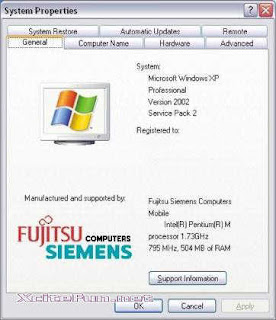
If you want to put your own graphic in there, you should create your image in a .bmp graphic file. It’s also a good idea to create this bitmap image with the same background shade of gray (RGB: 192, 192, 192) used in the Properties dialog. Otherwise, you risk letting Windows make its own judgments regarding color contrast and background shading.
The next thing to consider is the image size. The system properties dialog only offers enough real estate for an image of about 180 (wide) x120 (high) pixels. Make sure that you can fit your logo in this area.
Once you have created your logo and saved it as a .bmp file, copy it over to the system32 subfolder of your Windows system folder. If you don’t know where your system folder is :
- Click the Start button and select “Run”
- In the “open” field, enter “cmd” (without the quotes) and click ok
- Windows will open up a dos command window
- In the command window, type “set system” (without the quotes)
- Look for the line that contains “SystemRoot”, this is where your system directory is (generally, the Windows XP system folder is c:\windows)
Now that you know where your system folder is, copy your logo image file over to the system32 subfolder of your system folder. Then rename your logo image file to oemlogo.bmp
Additionally you can create a new file in this same folder and name the new file oeminfo.ini
In this file you can enter your contact information like in the example below :
[General]
Manufacturer=Your Company Name
Model=ShowCase
[Support Information]
Line1=” ”
Line2=” For support, sales, upgrades or questions:”
Line3=”"
Line4=” Some text to demonstrate the XP System Properties logo”
Line5=” Windows XP PC ”
Line6=” Your Company Name”
Line7=”"
Line8=” +1 (888) 888-888 (voice)”
Line9=” +1 (888) 888-889 (fax)”
Line10=”"
Line11=”"
Line12=” http://www.Your Company Name.com/”
Save and close the file and you are ready. From now on, if someone opens up the system properties dialog, your own Windows XP System Properties logo is in there.
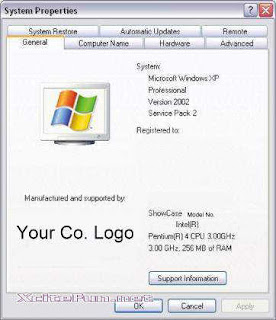
In this tip you can learn how you can insert your own logo in the system properties dialog and complete it with your own contact information.
To invoke the system properties dialog, click the Start button, right-click “My Computer” and select “Properties”.
This will open up your general system information dialog. On our Fujitsu-Siemens Amilo Pro laptop, the Windows XP System Properties logo looks like this :

If you want to put your own graphic in there, you should create your image in a .bmp graphic file. It’s also a good idea to create this bitmap image with the same background shade of gray (RGB: 192, 192, 192) used in the Properties dialog. Otherwise, you risk letting Windows make its own judgments regarding color contrast and background shading.
The next thing to consider is the image size. The system properties dialog only offers enough real estate for an image of about 180 (wide) x120 (high) pixels. Make sure that you can fit your logo in this area.
Once you have created your logo and saved it as a .bmp file, copy it over to the system32 subfolder of your Windows system folder. If you don’t know where your system folder is :
- Click the Start button and select “Run”
- In the “open” field, enter “cmd” (without the quotes) and click ok
- Windows will open up a dos command window
- In the command window, type “set system” (without the quotes)
- Look for the line that contains “SystemRoot”, this is where your system directory is (generally, the Windows XP system folder is c:\windows)
Now that you know where your system folder is, copy your logo image file over to the system32 subfolder of your system folder. Then rename your logo image file to oemlogo.bmp
Additionally you can create a new file in this same folder and name the new file oeminfo.ini
In this file you can enter your contact information like in the example below :
[General]
Manufacturer=Your Company Name
Model=ShowCase
[Support Information]
Line1=” ”
Line2=” For support, sales, upgrades or questions:”
Line3=”"
Line4=” Some text to demonstrate the XP System Properties logo”
Line5=” Windows XP PC ”
Line6=” Your Company Name”
Line7=”"
Line8=” +1 (888) 888-888 (voice)”
Line9=” +1 (888) 888-889 (fax)”
Line10=”"
Line11=”"
Line12=” http://www.Your Company Name.com/”
Save and close the file and you are ready. From now on, if someone opens up the system properties dialog, your own Windows XP System Properties logo is in there.

September 20, 2008
Increasing The Life Of Hard Disk
Taking care of your hard disk is important because this is the place where all the data is stored and once the hard disk crashes, data in most cases is not recoverable. There are data recovery softwares and programs which recover data from crashed hard disks but that is not for normal computer users:
But why do hard disks crash and what can be done to prevent them from crashing?. At the same time how can a hard disk be made more efficient? Here are the answers:
Hard disks crash due to many reasons:
1)Voltage fluctuations
2)physical impact
3)improper alignment
4)mechanical failure due to wear and tear of internal parts.
Let us start one by one and get the answers to the above problems.
1) Voltage fluctuations or spikes as they are called can be prevented by using voltage stabilizers or spike guards. This will limit the damage to the hard disk to a great extent.
2) Physical impact can be prevented by handling the hard disk carefully when installing/ re-installing. When installing the hard disk care should be taken to see that it sits perfectly horizontal and that it does not vibrate or shake once the computer is started.
3) The natural wear and tear of parts can be limited by defragmenting your hard disk from time to time.But what is defragmentation?
All newly created files are stored in various places on the hard disk in a single cluster ( contiguous file ). But, as the number of files and programs increase, these files are not stored as one contiguous file but broken down and scattered in various places on the hard disk. In short files get fragmented. When these files are accessed by the user, the head on the hard disk moves to and fro to locate these fragments. These fragmented files puts lot of mechanical pressure on the internal parts of the hard disk. This leads to crashes.
To start disk defragmenter from the start menu, click the start button and follow this path (All Programs / Accessories / System Tools / Disk Defragmenter). A minimum of 15 percent free space on your disk is needed for disk defragmenter to run. The disk can also be defragmented automatically by using schedule task. This program can can be accessed via system tools.
4) Power management tool can also be used to enhance the life of hard disk. To access this program go to start / control panel / power options and set the parameters for various hardware devices.
5) Disk cleanup increases the efficiency of the hard disk. So delete unwanted files and programs regularly.
But why do hard disks crash and what can be done to prevent them from crashing?. At the same time how can a hard disk be made more efficient? Here are the answers:
Hard disks crash due to many reasons:
1)Voltage fluctuations
2)physical impact
3)improper alignment
4)mechanical failure due to wear and tear of internal parts.
Let us start one by one and get the answers to the above problems.
1) Voltage fluctuations or spikes as they are called can be prevented by using voltage stabilizers or spike guards. This will limit the damage to the hard disk to a great extent.
2) Physical impact can be prevented by handling the hard disk carefully when installing/ re-installing. When installing the hard disk care should be taken to see that it sits perfectly horizontal and that it does not vibrate or shake once the computer is started.
3) The natural wear and tear of parts can be limited by defragmenting your hard disk from time to time.But what is defragmentation?
All newly created files are stored in various places on the hard disk in a single cluster ( contiguous file ). But, as the number of files and programs increase, these files are not stored as one contiguous file but broken down and scattered in various places on the hard disk. In short files get fragmented. When these files are accessed by the user, the head on the hard disk moves to and fro to locate these fragments. These fragmented files puts lot of mechanical pressure on the internal parts of the hard disk. This leads to crashes.
To start disk defragmenter from the start menu, click the start button and follow this path (All Programs / Accessories / System Tools / Disk Defragmenter). A minimum of 15 percent free space on your disk is needed for disk defragmenter to run. The disk can also be defragmented automatically by using schedule task. This program can can be accessed via system tools.
4) Power management tool can also be used to enhance the life of hard disk. To access this program go to start / control panel / power options and set the parameters for various hardware devices.
5) Disk cleanup increases the efficiency of the hard disk. So delete unwanted files and programs regularly.
Remove Horizontal Scrollbar In Notepad
It is inconvenient to read text with having the Horizontal Scrollbar in Notepad. I used to face this problem as well. When I read them, I must slide the Horizontal Scrollbar every time. So, It is hard to read them. But now I can get rid of this Scrollbar.
1)Open a Notepad file.
2)In the Menu Bar, Click Format>Word Wrap
3)Your Horizontal Scrollbar disappears now, and the text are easier to read.
1)Open a Notepad file.
2)In the Menu Bar, Click Format>Word Wrap
3)Your Horizontal Scrollbar disappears now, and the text are easier to read.
Subscribe to:
Posts (Atom)
ur ip info:

Sign by Dealighted - Coupon Codes and Deals


 Posts
Posts


